Easy Steps for Filing Online


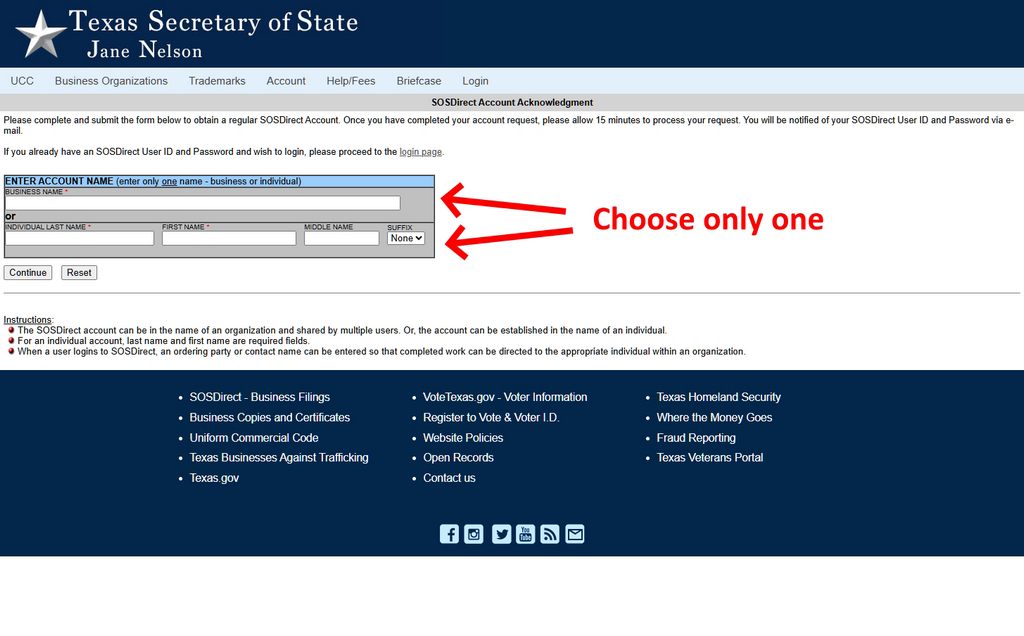
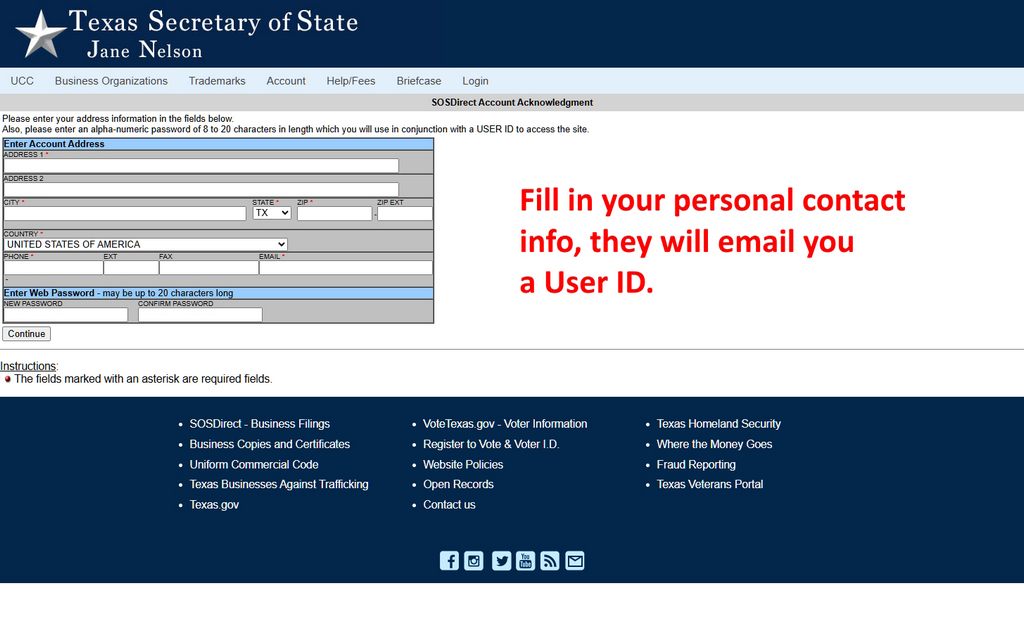
On the next page, fill in your address, phone, and email (image 1b). This information is private, so don’t worry about it being made public. You also need to create a password.
Again, this step is only to create an account. After submitting, you should receive an email within a few minutes with your SOSDirect User ID, but it may take up to a day. You will need this to login.

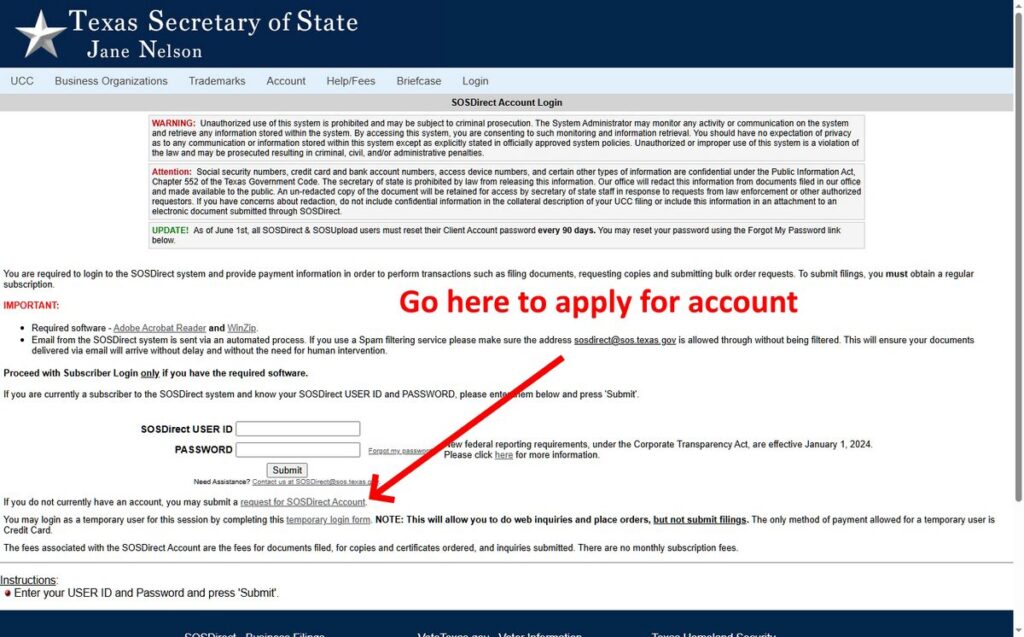
Step 2) After you get your User ID, you can now login on that same initial page (refer back to image 1).
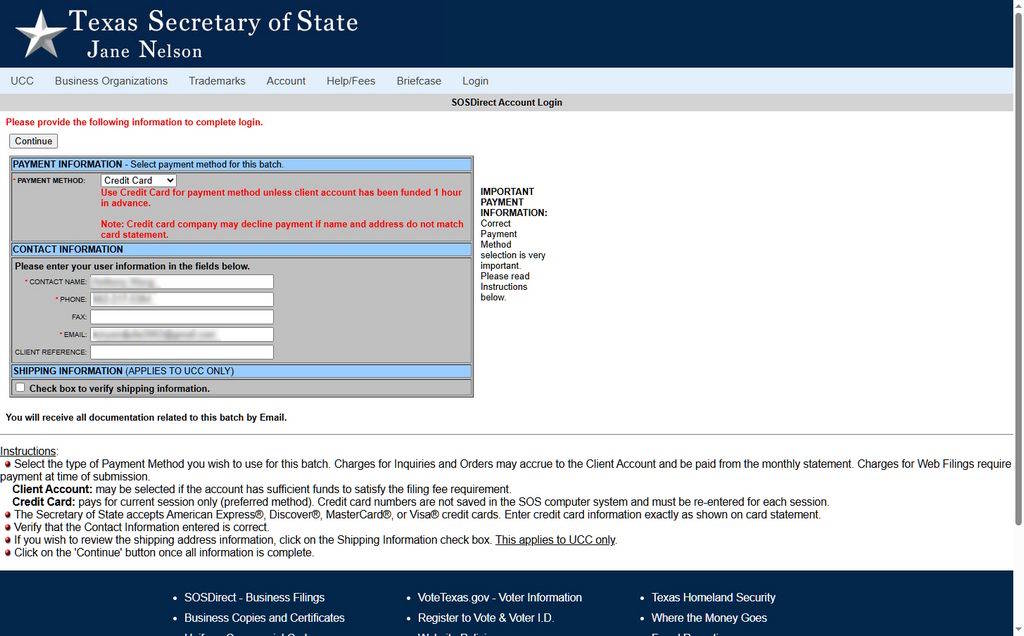
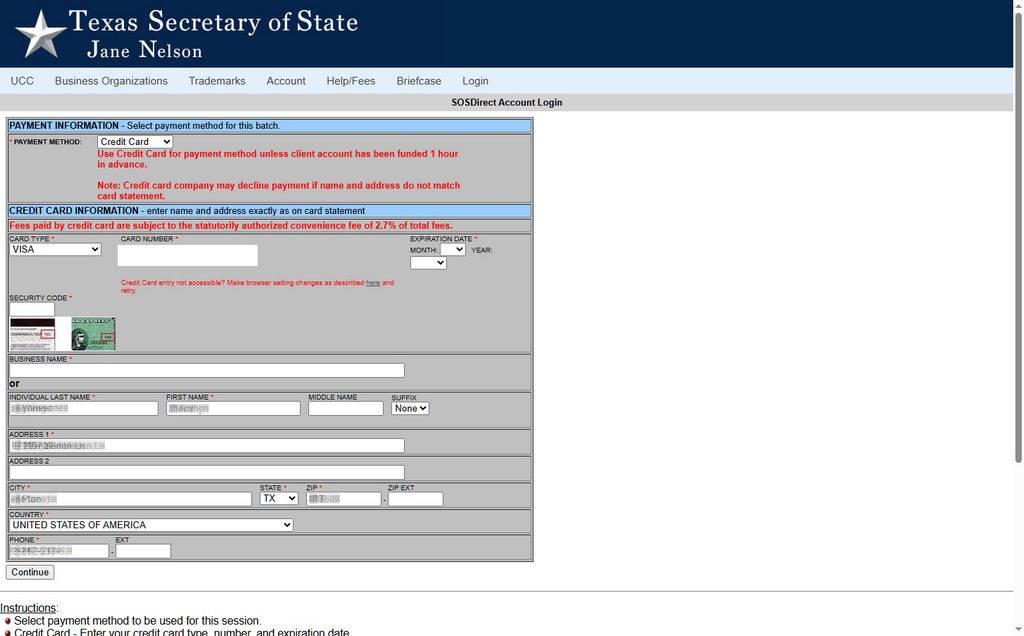
After entering your User ID and pw, the first screen that comes up will request payment information (image 2).

Even if you don’t actually do anything yet, you cannot use the website without adding your credit card info. Don’t worry, it won’t charge you unless you actually file your application. The next page is where you add your credit card info (image 2a).
Every time you login to use the website, you will need to add a credit card, even if you don’t want to purchase anything. That’s just the way it is.

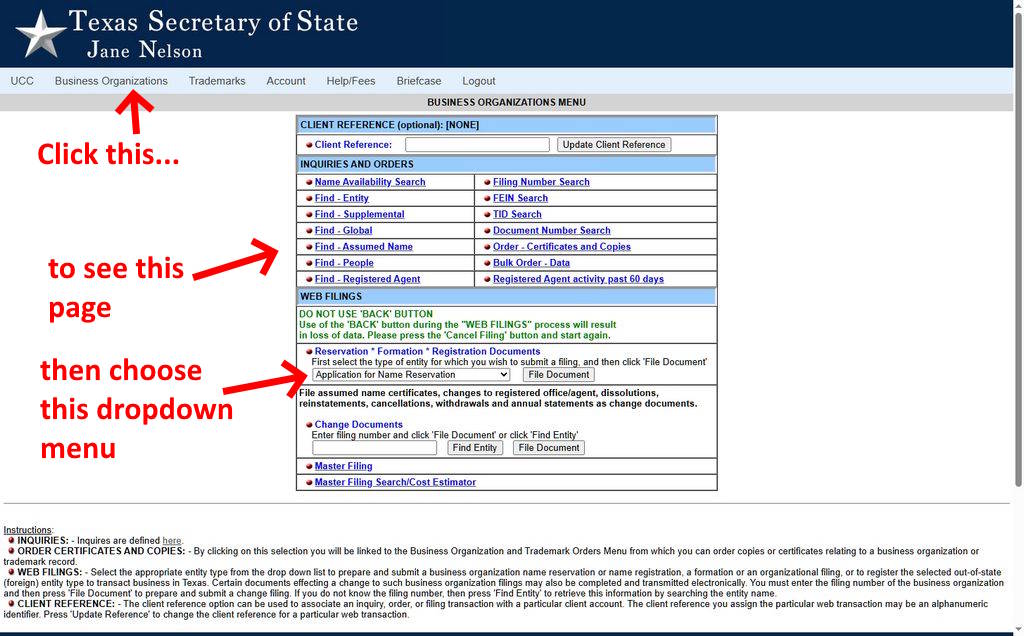
Step 3) Click the Business Organizations on the top menu and you’ll see this menu page with various links you can click.
Under Web Filings, click the dropdown menu that says “Application for Name Reservation” (image 3).

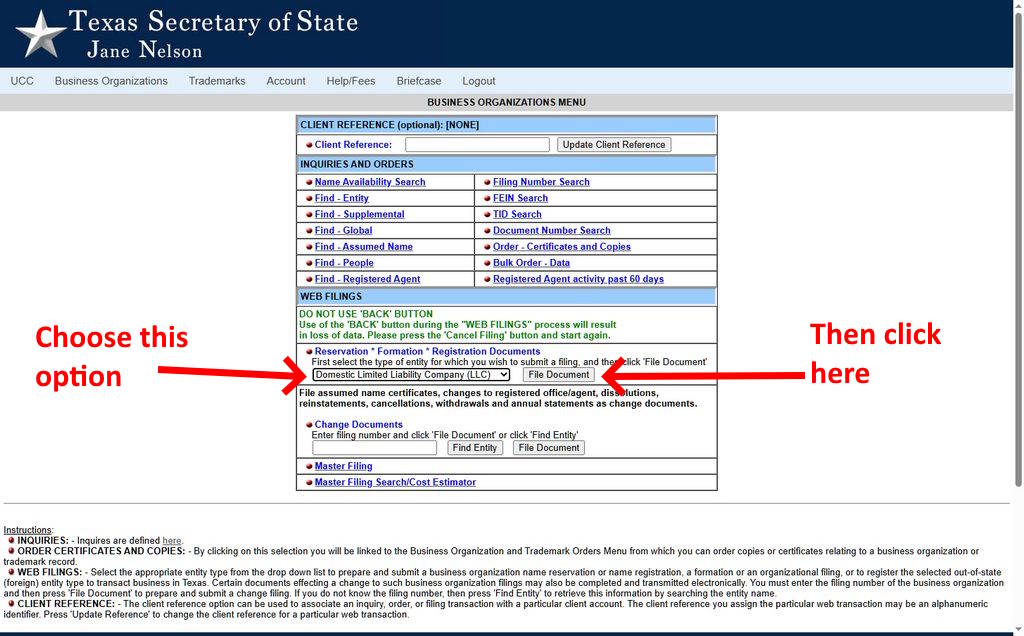
Choose the option “Domestic Limited Liability Company (LLC)”. The term “domestic” just refers to your entity being formed and operating in Texas. Next click “File Document” (image 3a).

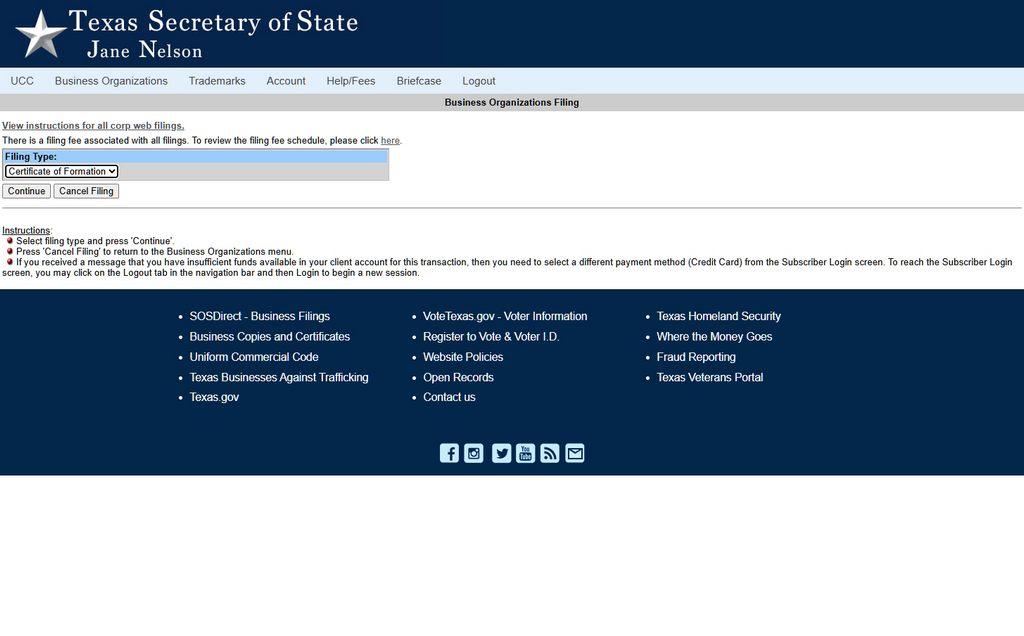
The next screen will ask for Filing Type. Click the dropdown menu and choose “Certificate of Formation” and click “continue” (image 3b).
The Certificate of Formation is the document you’ll receive after the state processes your application. This is the official document that a bank may ask for when you open a bank account, for example.

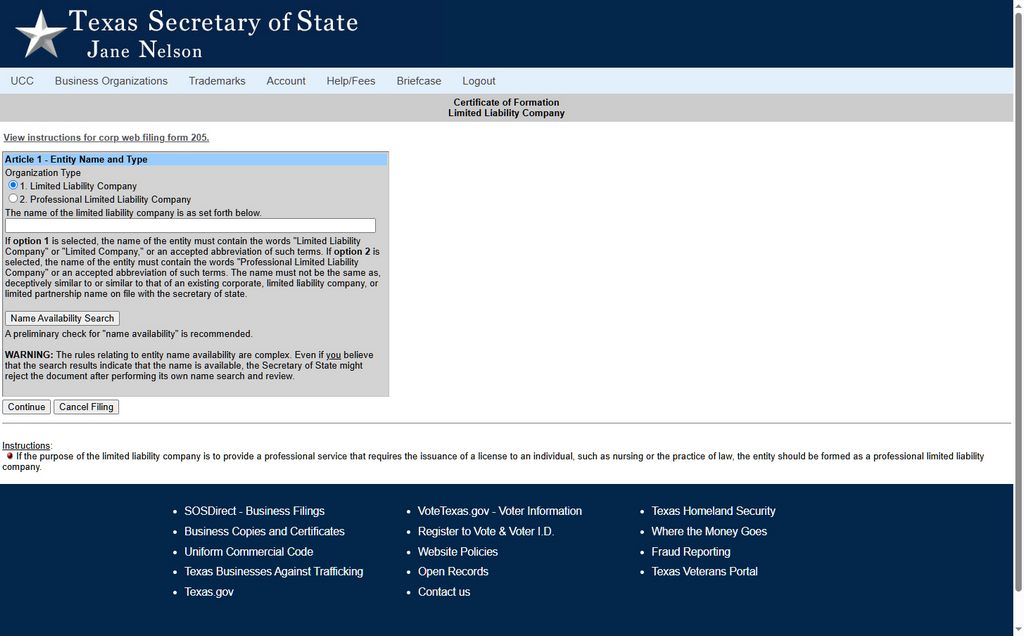
Step 4) Entity Name and Type (image 4). On this screen, choose Limited Liability Company for Organization Type. In the open box, type the name of your LLC.
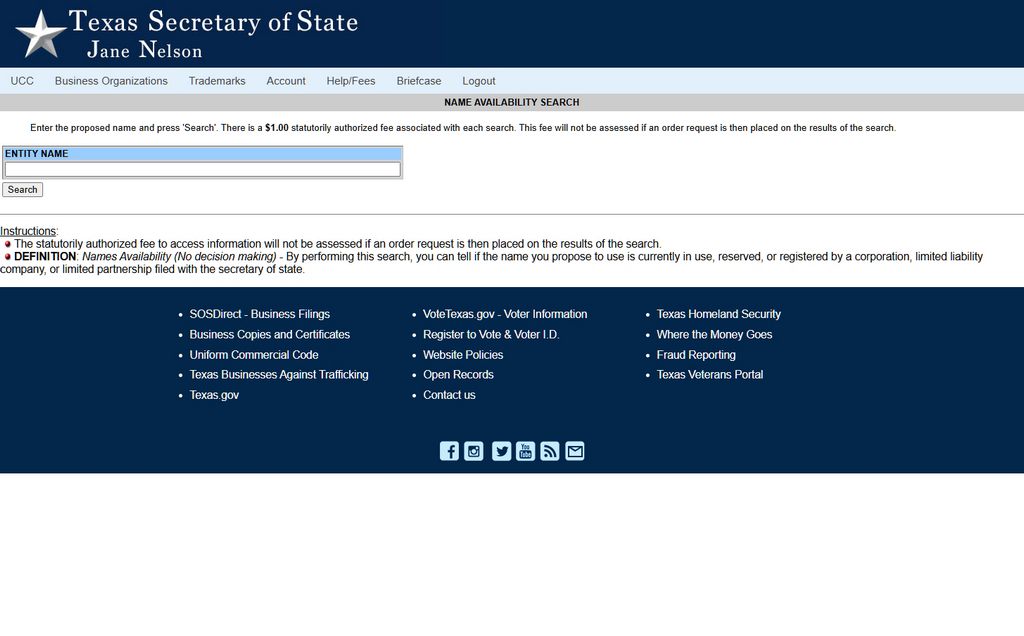
Be aware that your name must be unique, so if another business has the same name already, your LLC will not be approved. Therefore, you should click Name Availability Search.

It will then show you a list of names that are already registered, including names that are similar to the one you chose (image 4a). If your name is unique, click Return to Filing on that screen.
It will take you back to the previous screen again (image 4), and you can click Continue.

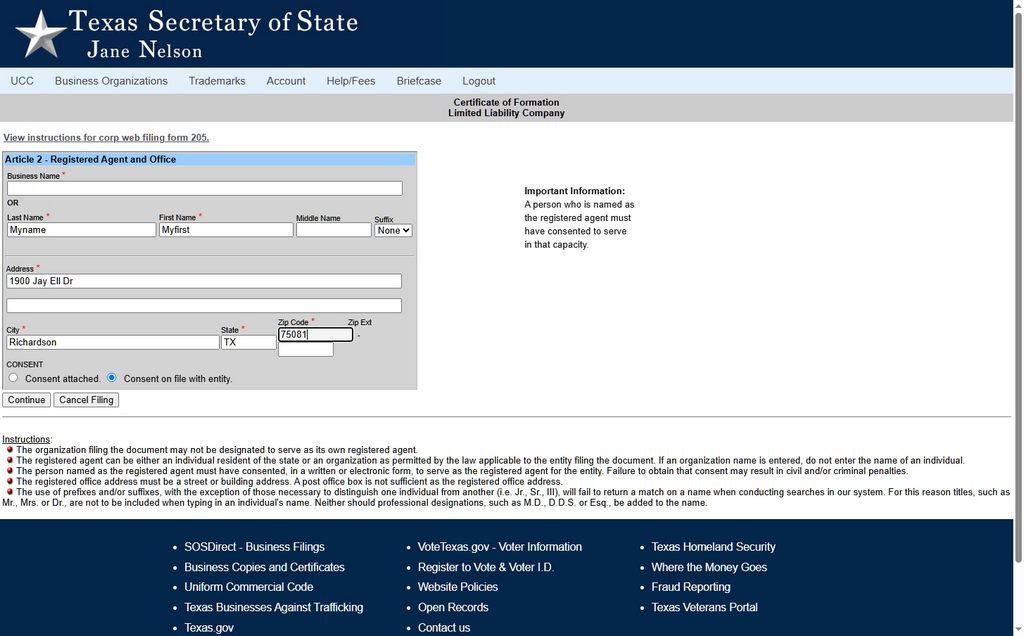
Step 5) Enter your registered agent info (image 5). See How To Create an LLC in Texas for comments on who should be your registered agent. Click Continue.

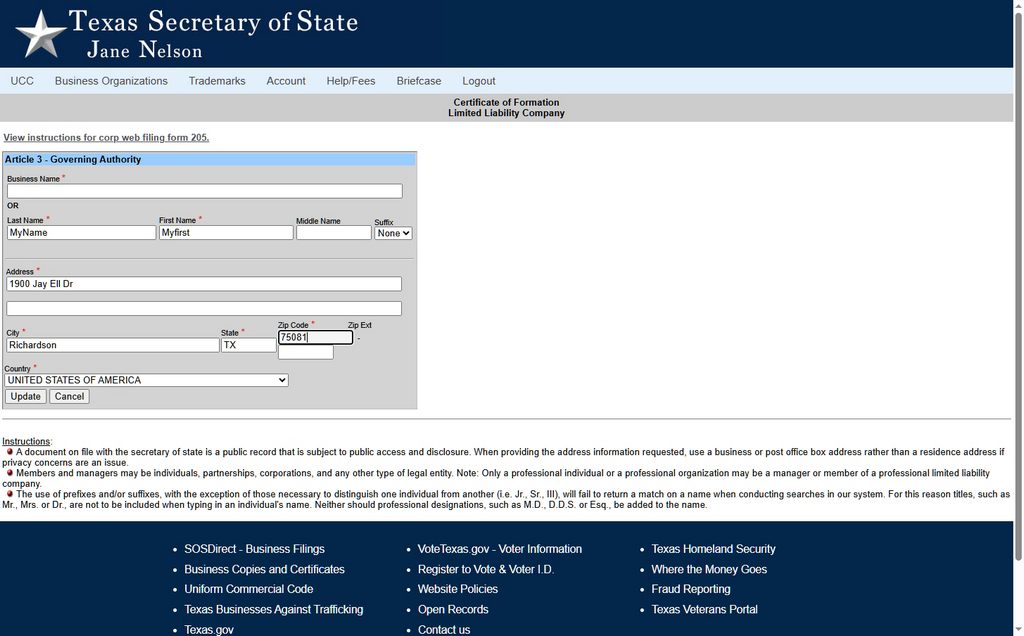
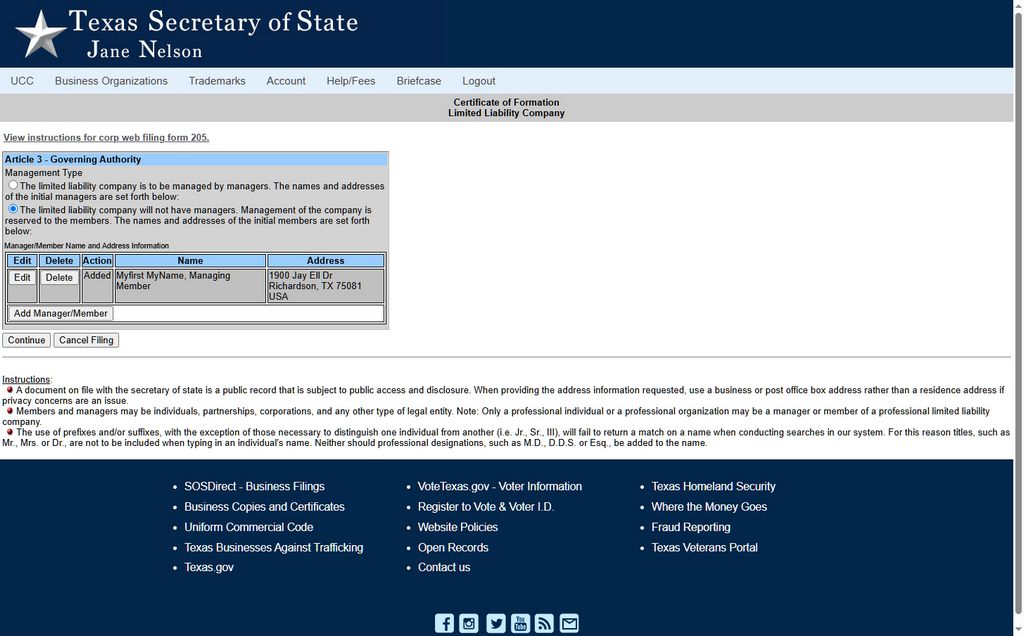
Step 6) Governing Authority (image 6). On this page you will list the governing authority, either a person or an organization. Most likely it will be a person, yourself.
If the owner(s) will be the manager, they are called a managing member. If the manager is not an owner, they will be called manager.

On the next page, you can add more people (image 6a). List all the managers or all the managing members.

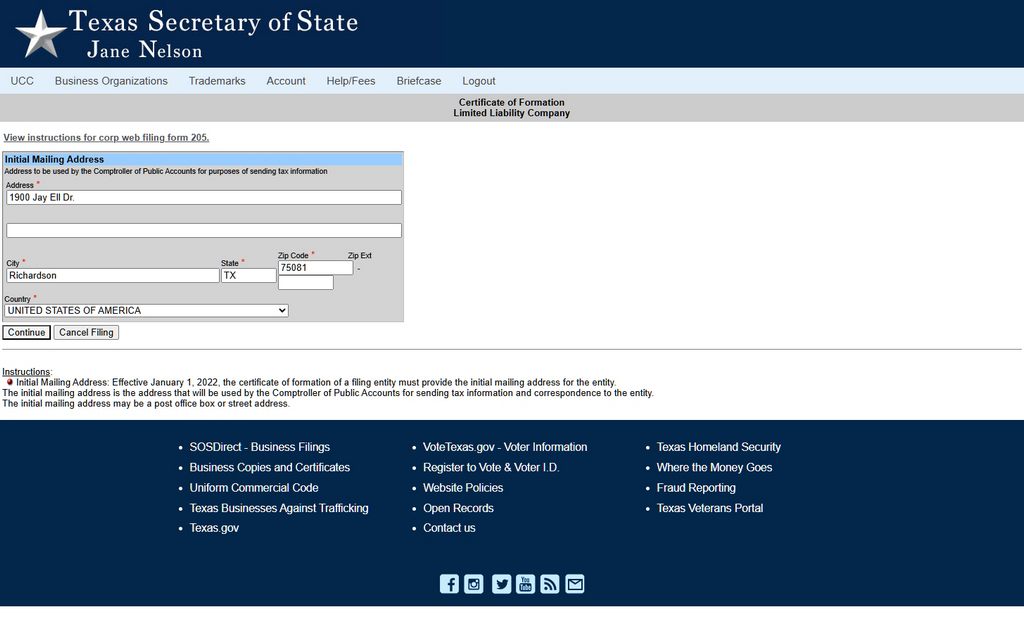
Step 7) Initial Mailing Address (image 7). This is where you want tax info sent. You can put your home address if you don’t have an actual office. Or, as we discussed on Virtual Address for LLC, your virtual office address can go here.
If you need a virtual office in Richardson, TX The Drawing Board is a great choice. We have different plans and even offer various coworking options if you think you’re business will grow.

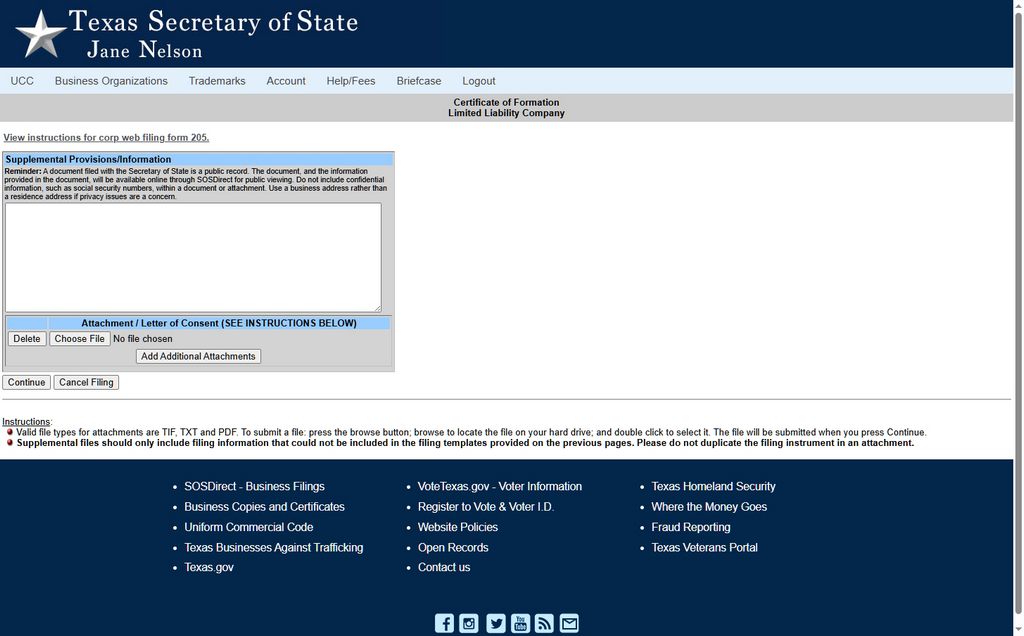
Step 8) Supplemental Provisions/Information (image 8). You can skip this step; you probably don’t have anything to add at this time, so just hit continue.

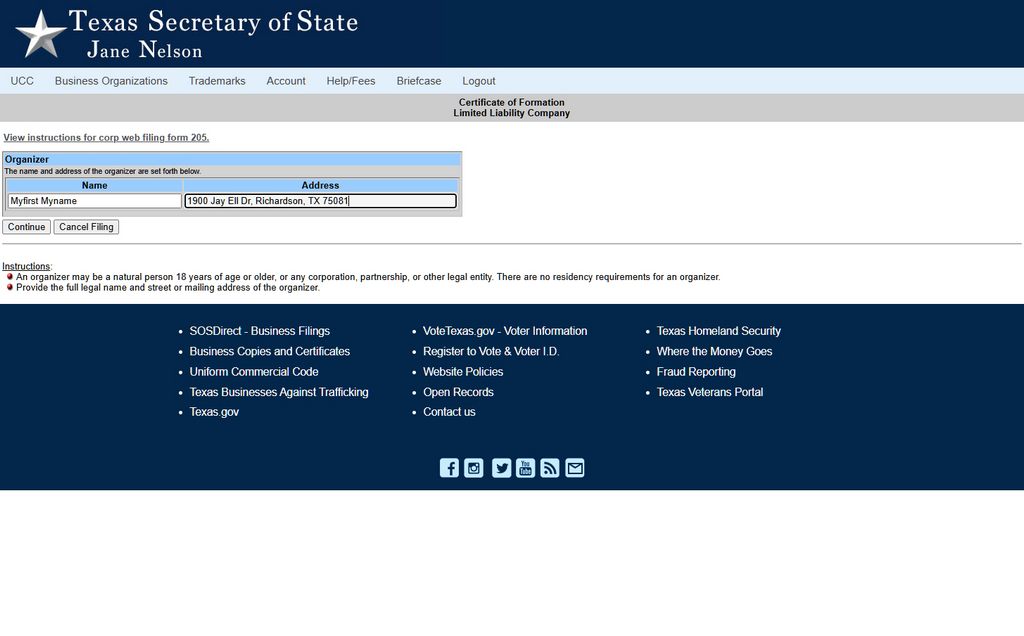
Step 9) Organizer (image 9). This is the person filling out this application, which should be you, since you are reading this.

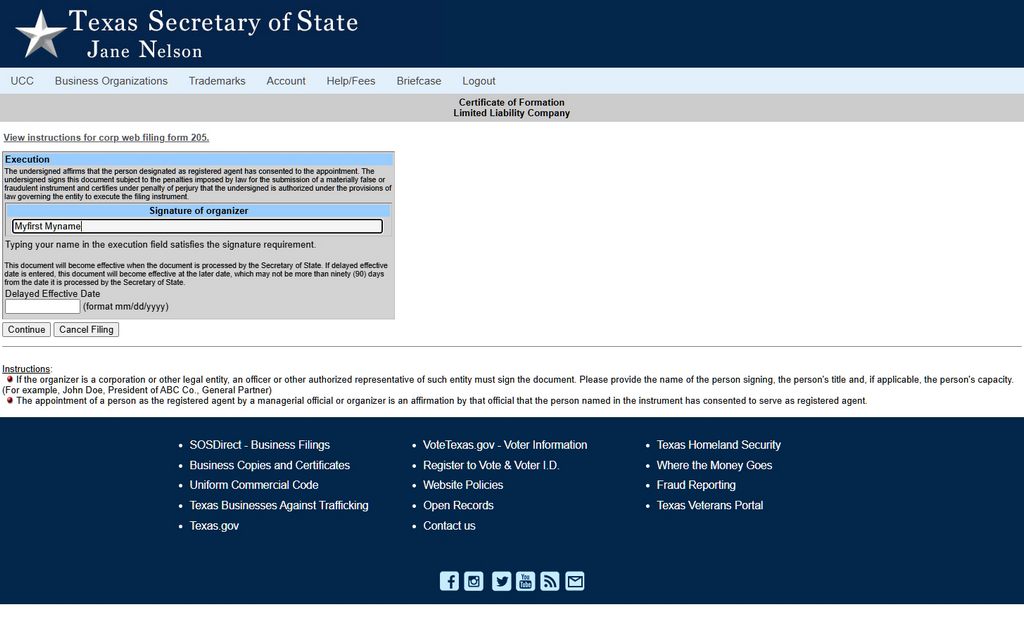
Step 10) Execution (image 10). This is your signature affirming that everything you filled out is true. There’s also a place where you can make the filing date effective in the future if you want. Otherwise leave it blank and it will be effective as of today, or whenever it gets processed.

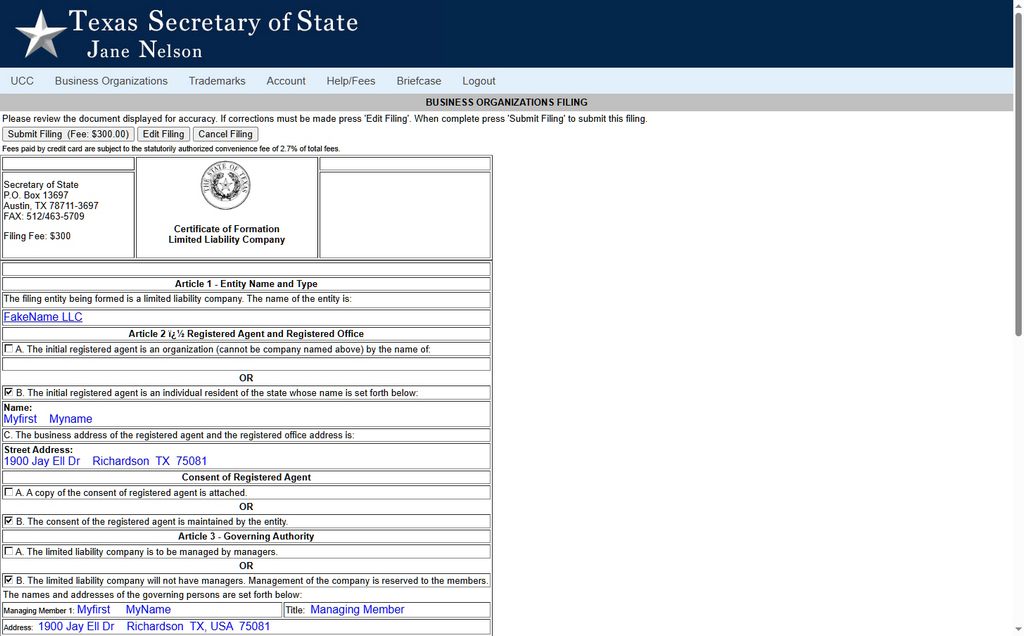
Step 11) Final review and payment (image 11). This is the last page, which shows all the information you just input.
The first button at the top is Submit ($300). Don’t hit this until you have reviewed everything below to make sure it’s correct.
You can hit Edit if you notice a mistake. Otherwise, click Submit and it will charge your credit card.
You should receive confirmation via email, and you will receive an actual letter with the certificate when everything is processed.
That’s all, congratulations on filing your LLC!